
Dell Laptop SSD Upgrade Guide: Boost Speed in Minutes
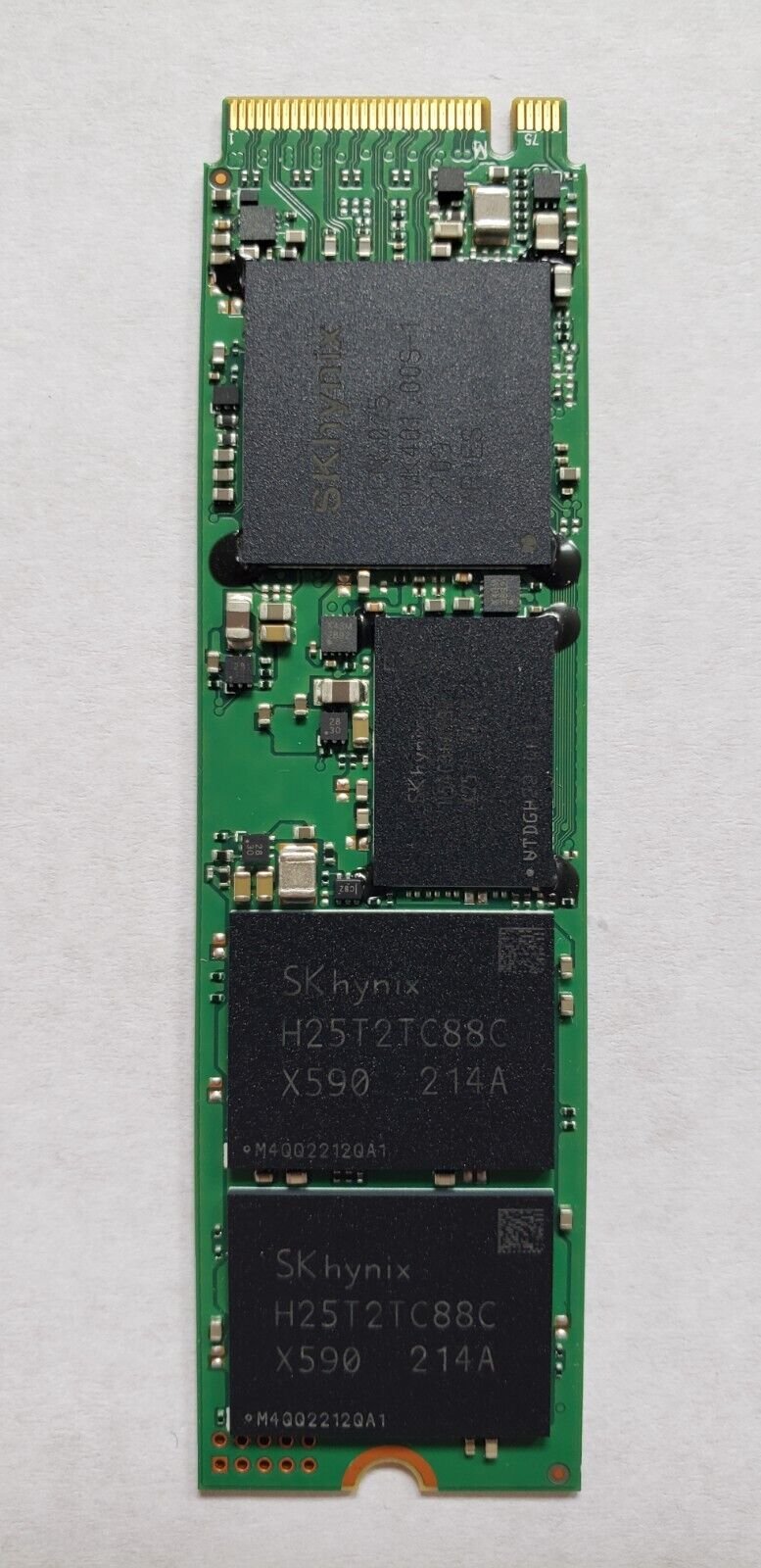 Photo: Wikimedia Commons
If you've ever watched a progress bar crawl during Windows startup, a Dell SSD upgrade Kolkata is very likely the single most cost-effective repair you can make. Solid-state drives have no moving parts, which means dramatically faster read/write speeds and none of the mechanical wear that eventually causes a Dell laptop SSD failure in aging drives too.
NVMe vs SATA SSD: Which Fits Your Dell?
Newer Dell Inspiron, XPS, and Latitude models typically support NVMe drives connected via M.2 slots, which are significantly faster than older SATA-based SSDs. Some budget or older models only support SATA SSDs or 2.5" drive bays. We check your exact motherboard slot and BIOS compatibility before recommending a Dell SSD replacement Kolkata part, so you don't pay for speed your laptop can't actually use.
What the Upgrade Process Looks Like
- Full diagnostic to confirm current drive type and available upgrade slot
- Cloning your existing Windows installation, apps, and files onto the new SSD
- Physical fitting and secure mounting inside the chassis
- Boot verification and driver checks post-upgrade
- Optional secure wipe of the old drive if it's being retained or handed back
Pairing an SSD with a RAM Upgrade
For laptops handling heavy multitasking, we often recommend combining the SSD swap with a Dell RAM upgrade Kolkata. The two upgrades address different bottlenecks — storage speed and multitasking headroom — and together they typically make a 4–5 year old Dell laptop feel close to new again.
No Data Loss, No Fresh Install Needed
A common misconception is that upgrading storage means starting over. Our cloning process transfers your existing setup — files, software, settings — onto the new drive, so you're back to work immediately rather than reinstalling everything from scratch.
Frequently Asked Questions
How much faster is an SSD compared to a hard drive?
Boot times typically drop from 60–120 seconds to under 20 seconds, and app load times improve by 3–5x or more depending on the SSD type fitted.
Can I upgrade an old Dell laptop's storage myself?
It's possible on some models, but cloning the OS correctly and identifying the right SSD type (NVMe vs SATA) is where most DIY attempts go wrong. Professional fitting avoids data loss and compatibility issues.
Facing This Issue on Your Dell Laptop?
Get a free diagnostic and transparent quote from Kolkata's trusted Dell Service Centre — same-day repair, genuine parts, doorstep service available.


